

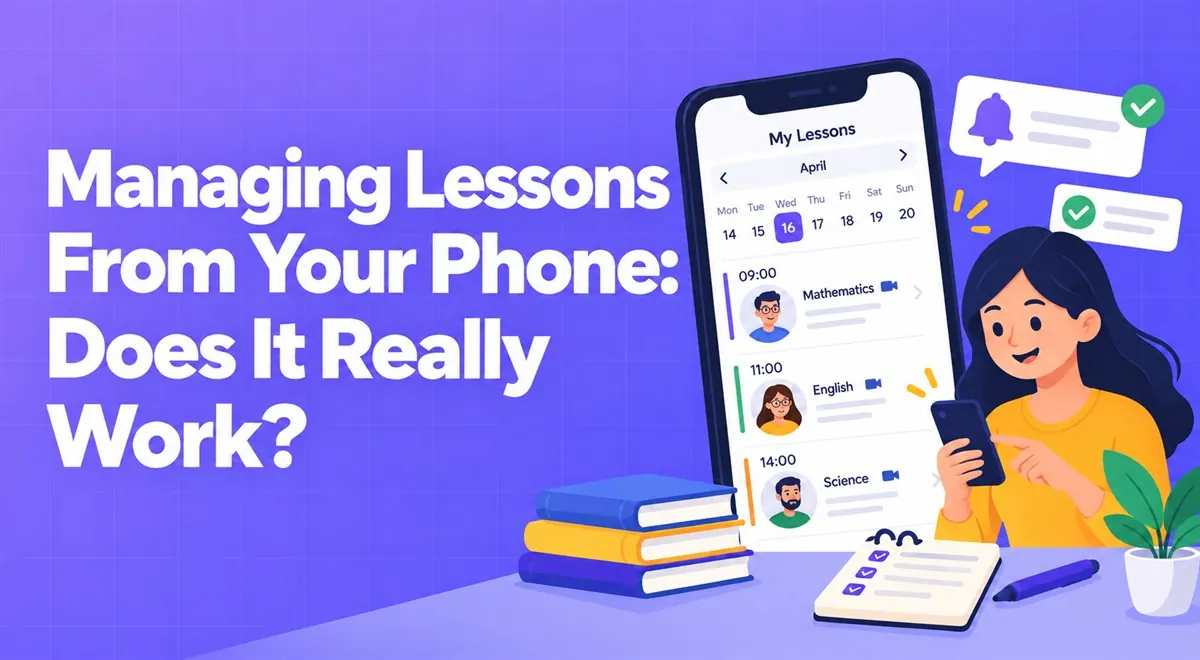
Managing Lessons From Your Phone: Does It Really Work?
A tutor's job doesn't end with the lesson hour. We explain what managing your calendar, messages, and homework from your phone is good for and where it falls short.
There's no video call tool that's right for everyone; there's one that fits your student, your lesson, and your habits. Five things to look at when choosing.

A question tutors often ask: "Which should I use, Zoom, Meet, or Teams?" The honest answer is that I don't know which is "best"; but there are ways to think about which might suit you better.
This is the most important criterion. A tool the student already knows and has installed on their computer or phone removes the "what will happen when I click the link?" rush in the first lesson. Most adult students are used to a tool from work; parents of young children may know a tool from schools.
Some tools work in the browser, others require installing an app. Whether an account is required also makes a difference. For a student who struggles with technical matters, the simplest option is the right one. Testing together five minutes before the lesson starts lets you see all these differences at once.
Free plans of many tools may have limits on meeting duration or number of participants, and these conditions change over time. So instead of trusting specific numbers, check the current terms of the tool you're thinking of using on its own page. Getting a "your time is up" warning in the middle of a lesson is a surprise nobody wants.
It's not necessary for all of them to be in one tool; you can fill in what's missing another way. But going through this list once prevents later disappointments.
Using a different tool for each student throws you into a constant "which one will we be on?" confusion. Pick a tool, give students a clear link, and if possible use the same room or link in every lesson. Habit strengthens the lesson ritual in the student's mind.
A video call tool is only one part of the lesson. When everything like calendar, materials, homework, and payment sits in separate places, managing it is tiring. Vedubox Tutor works integrated with tools like Zoom, Microsoft Teams, Google Meet, and Cisco Webex; through the virtual classroom you can start and record your live lesson without installing an extra app. The platform's frequently asked questions section states that you can use Zoom from within the system and benefit additionally from features like exams, surveys, and certificates. For details, see the features page.
One day the connection will drop or the tool will cause an unexpected problem. Tell the student from the start: "If there's a problem, let's communicate through this phone number or this messaging channel; I'll send an alternative link within 5 minutes." Having a backup plan, beyond looking prepared for problems, really keeps you calm.
This article was prepared by the Vedubox team. For more information about Vedubox Tutor and our other products, you can visit vedubox.com.


Related content, tips, and updates to deepen your understanding and help you discover new ideas