
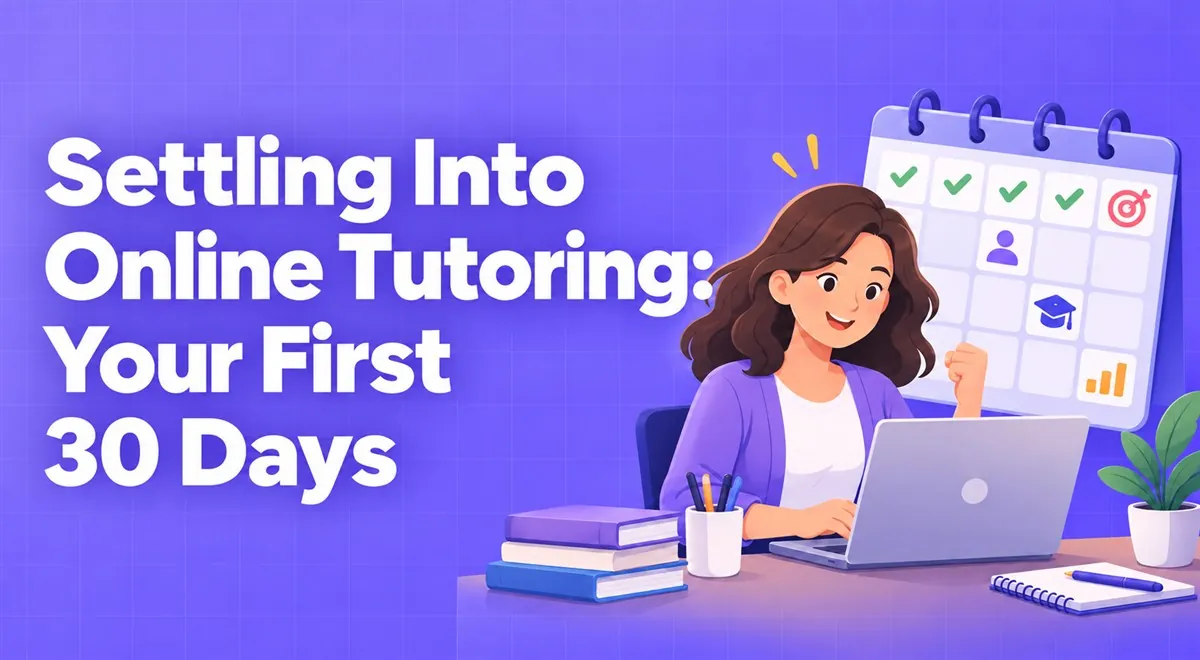
Settling Into Online Tutoring: Your First 30 Days
The first month is both exciting and chaotic. A simple plan divided into weeks makes it easier to go from finding your first student to a steady lesson routine.
You don't need a studio for online lessons. A well-placed lamp, a decent microphone, and a calm background are enough to make the difference in a student's eyes.
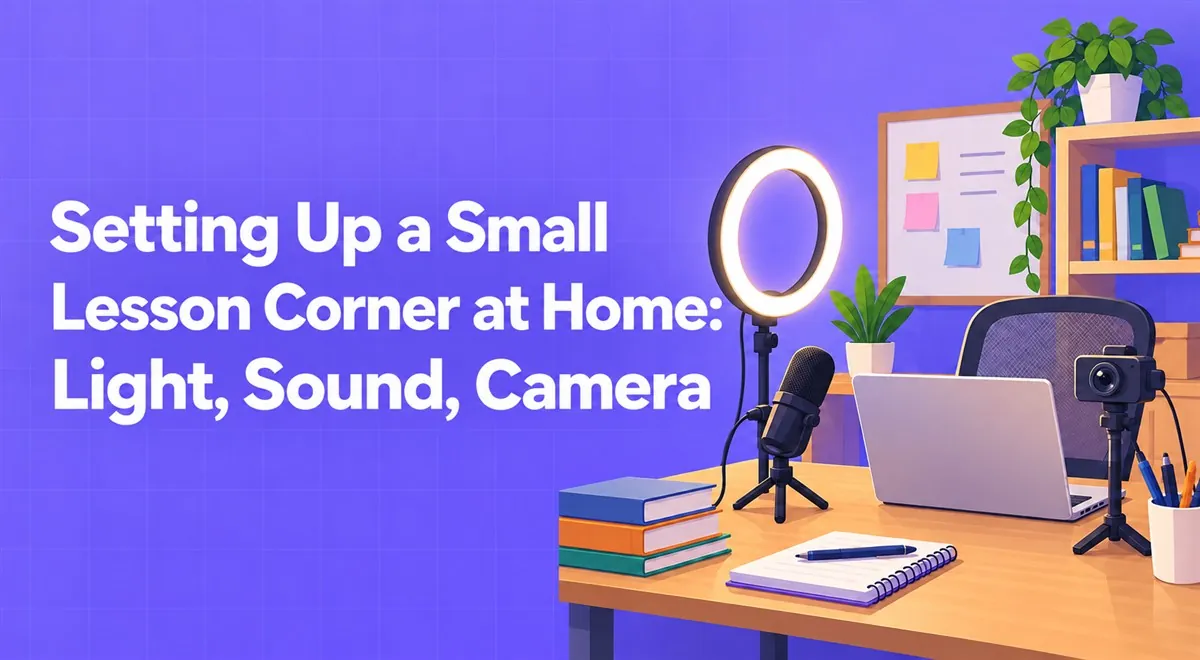
The good news: you don't need to set up a studio to teach online. The bad news: how the student sees and hears you affects their interest in the lesson almost independently of the subject you're explaining. A blurry, shadowed face and a crackly sound tire even the nicest explanation.
A corner of the kitchen table works, and so does a study room. What matters is getting three things right.
This is the cheapest and most effective improvement. Sit facing the window (or a lamp) so the light falls on your face. If you sit with your back to the window, the camera turns you into a silhouette and your face on screen is almost invisible. For evening lessons, turning a desk lamp from behind the monitor toward your face may be enough; if you bounce the light off a wall or ceiling instead of pointing it straight at your face, you'll get softer light.
Students put up with a few seconds of frozen video. They have far less patience for audio that cuts out or echoes. A headset (with a microphone) often gives better results than the computer microphone: it cuts the echo and sits close to your mouth. Before buying an expensive microphone, make a test recording with a cheap headset and listen to it; you'll hear the difference yourself.
A laptop's camera usually sits too low, and the student looks at you "from below, under your chin." Raise the computer with a couple of books so the camera comes to your eye level. If there's clutter in the background, choose a tidy corner; a plain wall or a bookshelf is enough. The blur-background option doesn't replace a new room but it will do.
If possible, sit near the router or connect by cable. Make sure no video is being downloaded on another device during the lesson. If you have a mobile data plan on your phone, it serves as a backup plan you can quickly switch to if the connection drops. Telling the student at the start of the lesson "if it cuts out, let's rejoin from the same link" prevents panic.
When you make this a habit, the rush at the start of the lesson noticeably decreases.
Some tutors keep the lesson tool in one place, payment in another, and materials in another, and open three different windows for each lesson. On Vedubox Tutor you can start a live lesson with one click through the virtual classroom; there's Zoom, Teams, Webex, and Google Meet integration, so you can connect the tool you already use. No additional setup is needed. For details like lesson recording and attendance reports, take a look at the features page.
After setting up your corner, do a short trial with a friend and ask how you look and how you sound. This five-minute trial prevents several weeks of uncomfortable lesson moments.
This article was prepared by the Vedubox team. For more information about Vedubox Tutor and our other products, you can visit vedubox.com.


Related content, tips, and updates to deepen your understanding and help you discover new ideas